You'd like AI to summarize a long client thread before your next call. Pasting a client's email into a chatbot feels wrong, though, and it's a fair instinct. There's another way: a local LLM email assistant. An open AI model runs on your own computer through Ollama, and your email client talks to it. AI tasks stay on that machine, and the text doesn't go to an AI vendor.
CoPhrase publishes this blog and is the email client in the setup steps below. Everything here works on its free plan, which includes your own AI for 2 mailboxes.
The trade-off is size. Your computer becomes the data center, and it's a small one. So give it the short, frequent jobs: sorting mail into labels, summarizing threads, writing short replies.
Where your email text goes: cloud key vs local model
Every AI feature in an email app sends the text to a model somewhere. What differs is where that model lives. The CoPhrase details here describe its desktop app, the one in the setup steps.
With a cloud key, the model lives at an AI company. You connect your own OpenAI, Anthropic or OpenRouter account with an API key. That's a code that lets an app use the account. The client then sends the email text to that provider. In CoPhrase, it goes straight from your device to the provider you chose.
With Ollama, the model lives on your computer. The text goes to a small server that Ollama runs at localhost:11434. Localhost is a computer's name for itself. By default Ollama listens only on that address, so other machines can't reach it. CoPhrase's docs put it simply: with Ollama, every AI task runs on the computer and no text leaves it.
One thing is the same in both setups. Mail still arrives from Google, Microsoft or an IMAP server, as it does in any email client. In the CoPhrase desktop app, mail is stored on your computer and the app talks straight to the mail provider. "Local AI" covers the AI tasks, not mail delivery.
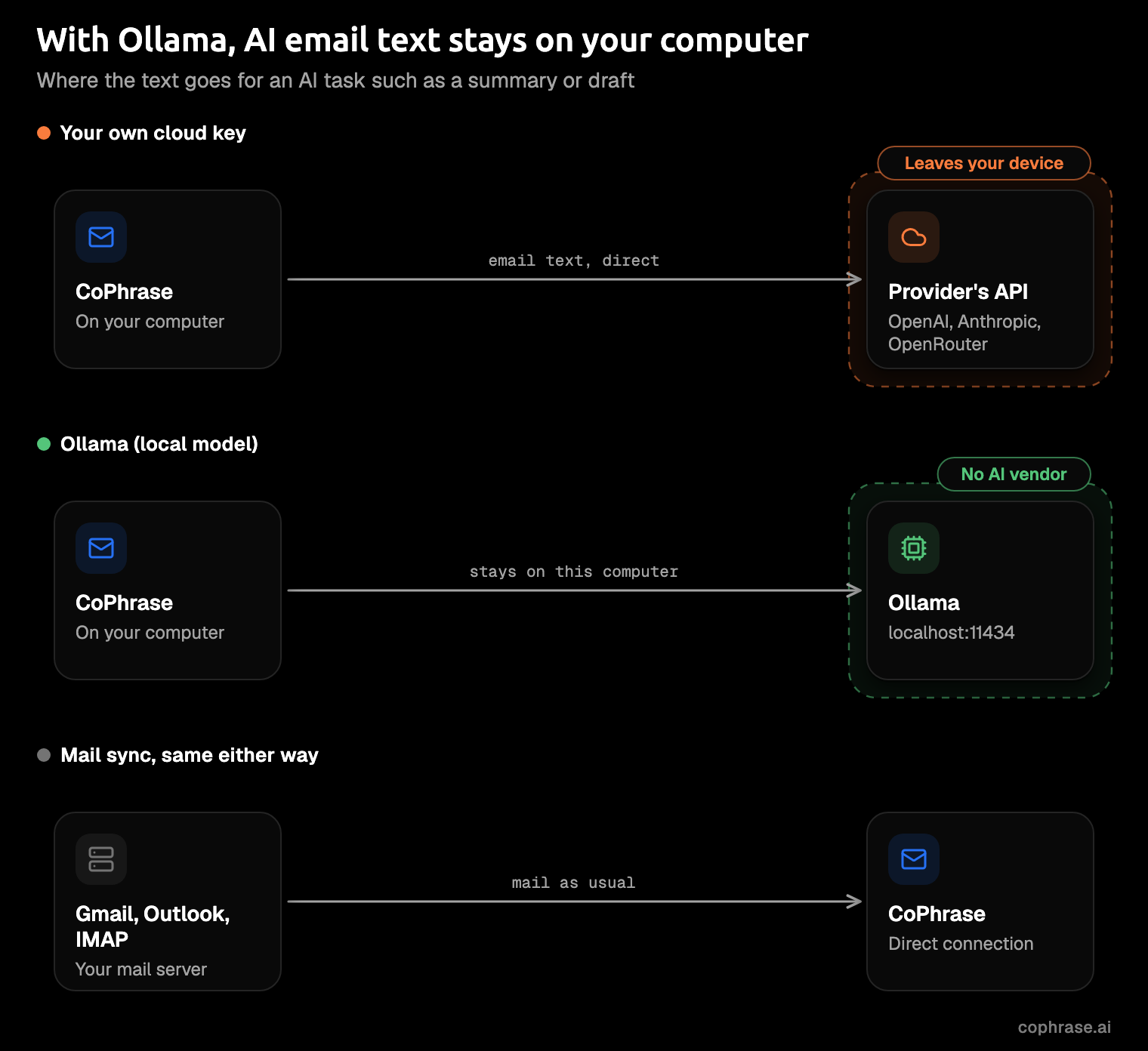
So when you weigh up privacy, skip "is this app private?" Ask "where does the text go when I ask for a summary?" That question has a checkable answer. If you'd assumed AI email always means a vendor keeps a copy of the mail, that's one setup, not a law of nature. The Privacy and security page lists where mail lives in each CoPhrase mode.
What a local model can and can't do for email
Local models do best on short, bounded jobs, where everything the model needs is in the message in front of it:
- sorting mail into labels from a rule in plain words
- summarizing a thread
- drafting a short reply
- rewriting or shortening something you wrote
In CoPhrase these are drafts in your voice, rewrite and shorten, thread summaries, and AI labels and Split Inbox tabs from plain-language rules.
Local models are weaker at long, nuanced drafts, like a careful note to an unhappy client. Small models simply know less than the big cloud ones. They also read only so much text at once, a limit called the context window. Ollama's default is 4,096 tokens, and a long thread full of quoted replies can run past it. You can raise the limit with OLLAMA_CONTEXT_LENGTH, but memory use grows with it.
Local models earn their keep on high-volume, low-stakes mail. Most inboxes are full of newsletters, receipts and shipping updates, and nobody needs a frontier model to recognize a receipt.
What you need
The list is short: Ollama, and a model that fits your computer. An embedding model for search is optional.
Install Ollama
Ollama is the part that does the thinking. It downloads open models, runs them on your machine and waits at a local address for your email app to ask. Get it from ollama.com/download:
- Mac: download
Ollama.dmg, or run the install script in Terminal. - Windows: download
OllamaSetup.exe, or run the install command in PowerShell. - Linux: run the install script.
If you'd rather use the terminal, the script for Mac and Linux is:
curl -fsSL https://ollama.com/install.sh | shAnd the PowerShell command for Windows:
irm https://ollama.com/install.ps1 | iexOn Apple devices, Ollama supports GPU acceleration through Apple's Metal API.
Pick a model that fits your computer
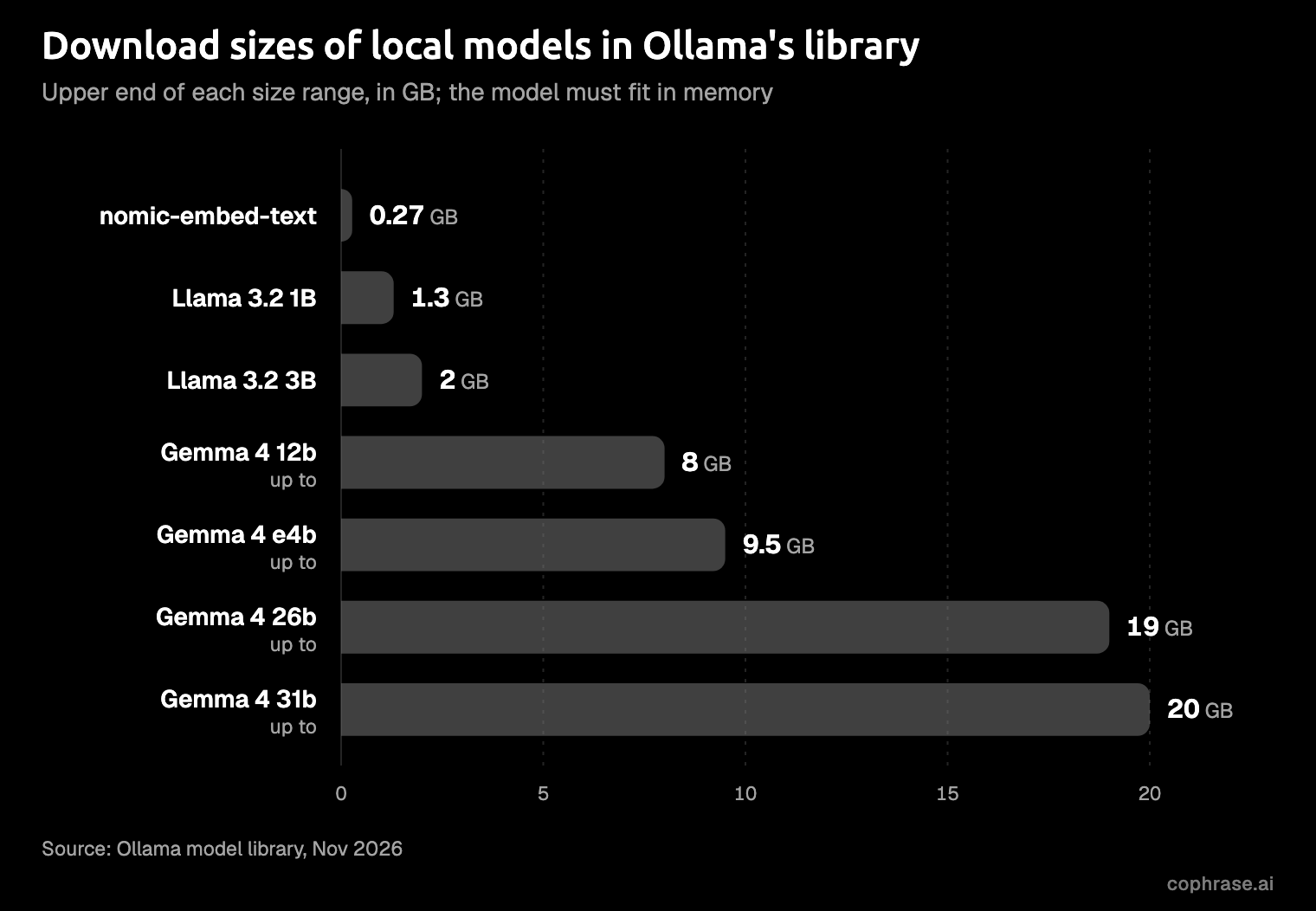
The one hard rule is memory: a model has to fit in what your computer has free. On the processor, that means system RAM. On a GPU, it means VRAM, the graphics card's own memory. Ollama's docs give no minimum figures, so compare a model's download size with the memory you have free.
| Model | Download size |
|---|---|
| Llama 3.2 1B | 1.3 GB |
Llama 3.2 3B (what llama3.2 gets you) | 2.0 GB |
| Gemma 4 e2b | 4.6–7.5 GB |
Gemma 4 e4b (what gemma4 gets you) | 6.6–9.5 GB |
| Gemma 4 12b | 7.7–8.0 GB |
| Gemma 4 26b | 16–19 GB |
| Gemma 4 31b | 19–20 GB |
Gemma 4 sizes are ranges because Ollama's library lists more than one download for each size, so check the size of the exact tag you pull. That's also why e4b can come out bigger on disk than 12b.
Gemma 4 comes from Google DeepMind, and Ollama's library says the e2b and e4b sizes target edge devices while the 12b, 26b and 31b sizes target local workstations.
Start small. Llama 3.2 3B or Gemma 4 e4b is a sensible first model; move up a size if the drafts feel thin. Wondering whether your laptop is enough? Check how much memory is free with your usual apps open, not the number on the box. Browser tabs want that memory too, and they don't share.
Pull the model in Terminal or PowerShell, then check it's there:
ollama pull gemma4
ollama ls
ollama pull downloads a model and ollama ls lists the models on disk. ollama run also fetches a model if it isn't downloaded yet.
One catch: Ollama also offers cloud models. Using them through a local Ollama needs an Ollama sign-in, and those requests aren't local, so stick to a model you download.
Optional: an embedding model for search
Semantic search finds mail by meaning, so searching "flight changes" can turn up a message that only says "rebooked". It needs a second kind of model, called an embedding model. That model turns text into lists of numbers a computer can compare. Ollama's library has nomic-embed-text, a 274MB download it calls a high-performing open embedding model.
ollama pull nomic-embed-textOllama's docs say to use the same embedding model for indexing mail and for searching it, so pick one and stay with it. In CoPhrase, semantic search is a separate opt-in. Before it turns on, it names the provider the mail text will go to, and with Ollama it uses nomic-embed-text.
Set up CoPhrase to use Ollama
Any email client that works with Ollama needs the same two details: the server's address and the model's name. Ollama offers an OpenAI-compatible API at http://localhost:11434/v1/, so apps can talk to it the way they'd talk to OpenAI. Apps built for OpenAI expect an API key there, and Ollama ignores whatever you put in.
In CoPhrase, install the app and connect Gmail, Outlook or IMAP first. Then:
- Check the model is pulled:
ollama lsshould list it. - Open Settings → AI and add a provider of type OpenAI-compatible.
- Set the Base URL to
http://localhost:11434/v1and leave the API key empty. - Type the model name, for example
gemma4. - Choose that model in the model slots.
Settings → AI has four model slots, one for each kind of job:
- Classify sorts mail into labels. Leave it empty and it uses Fast.
- Fast writes summaries. AI stays off until this slot is set.
- Standard handles drafts and rewrites.
- Strong takes the harder questions.
Each slot can use a different provider, which comes in handy if drafts ever fall short. For a fully local setup, choose the Ollama model in every slot you use. AI is off until you turn it on.
Keep Ollama on localhost. Ollama's FAQ notes that setting OLLAMA_HOST to a network address exposes it to other machines. And any host the Base URL points to receives the mail text it processes, a point Mailbird's privacy page makes about remote Ollama too.
Set it once, then forget which model runs what. The point was a calmer inbox, not a new hobby. AI and providers lists every provider CoPhrase supports.
What to try first
Start with jobs where a small model does well and a mistake costs nothing. In CoPhrase, try these in order:
- One AI label. Write a rule in plain words, such as "receipts and invoices", and let it sort new mail.
- A thread summary on a thread you'd rather not read in full.
- A draft reply. Ask for a short answer in your voice, then rewrite or shorten it.
Labels are the place to start. Sorting is the clearest win for a small model, and a wrong label is obvious at a glance. The first time a week of receipts files itself, you'll forgive the model its clumsier drafts.
Once those behave, teach CoPhrase a habit with a Skill. A Skill is a plain SKILL.md file with a name, a description and instructions, say for how you turn down meetings. Add one in Settings → AI → Skills → New Skill; Skills shows the format.
Press g, then a, to open Activity, which shows every AI action and why it happened. Actions that change mail or send it wait for approval unless you've allowed them.
Honest limits
A local model runs only as fast as your computer. That's the real weak spot, and the answer is to split the work. Keep sorting and summaries local. If drafts fall short, hand the Standard slot to your own cloud key, or to CoPhrase Cloud AI on Pro, which needs no keys.
Loading takes time, too. By default Ollama keeps a model in memory for 5 minutes after it's used. After a longer pause, the next request waits while the model loads again. OLLAMA_KEEP_ALIVE changes how long it stays, though a model in memory is memory other apps don't get.
Local is a choice, not a purity test. Use it where it fits, and your own key where it doesn't.
Other email clients that work with Ollama
CoPhrase is our pick for most people, but it isn't the only email app that works with Ollama. Three others do, each in its own way, per their own pages checked November 2026.
- Mailbird. Its AI privacy page says Wingman's local summaries and drafts need Ollama and a compatible model, managed in advanced settings. The same page lists Wingman as "Launching soon".
- Inbox Zero. The self-hosted version supports Ollama through the
OLLAMA_BASE_URLandOLLAMA_MODELenvironment variables on a server you run. It works with Gmail and Outlook but not IMAP, and AI on the hosted app needs a paid plan, from $25 a month. - Spark. Spark CLI, introduced in May 2026, is a command-line tool that lets your own AI agent use the inbox through Spark Desktop, set up under Settings → AI Agents. That agent can run on a local Ollama or LM Studio model. Spark's built-in +AI runs on Azure OpenAI instead.
In CoPhrase, Ollama is a provider on a settings screen, not an environment variable, and it works with Gmail, Outlook and IMAP accounts in one desktop app. Setting it up takes a form, not a weekend. The free plan includes your own AI, local models too, and the code is open source under AGPL-3.0. CoPhrase is young, and its community is still small. The code is open, the free plan costs nothing to try, and your mail stays with your provider if you leave.
Try it on one inbox
Download CoPhrase free for Mac or Windows from the download page, point it at Ollama, and let a small model sort your next week of mail. If you'd rather not run models at all, CoPhrase Cloud AI comes with Pro: get early access.